

User Management
This page explains how to manage users in the EcoPhi Portal. It covers inviting members, accepting organization invites, changing roles and permissions, and removing memberships for organizations and sub-organizations.
Watch this video to see how you can invite members to your Organizations:
To add or manage a user for a specific Organization or Sub-Organization, you must switch to the relevant Organization via the Organization Picker in the top navigation bar. You can find an overview of this navigation in EcoPhi Portal Structure.
Members
Add new Users to an Organization or Sub-Organization
To change Organization settings and add users, you need to be logged in to the relevant Organization.
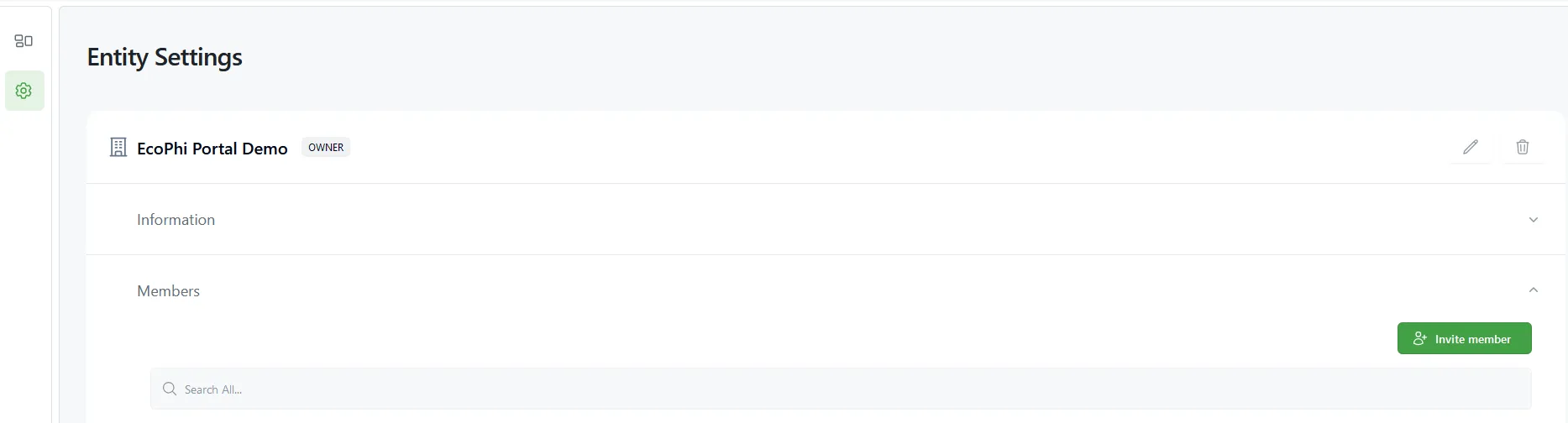
Go to “Organization Settings” -> Members and click “Invite member”.
Enter the email address and select the role. Click “Send invite”.
The user will receive an email to accept the invite. Once the user has accepted the invite, they are added as a member of the (Sub-)Organization.
Accept invites to a (Sub-)Organization
Users that have been invited to a (Sub-)Organization must accept the invite.
Hover over the Organization Picker in the top navigation bar and click on “Organization Memberships” as shown in EcoPhi Portal Structure.
You can also see open invitations on the welcome page. Click the logo in the top left to open the welcome page.
You will see the invites and existing memberships.
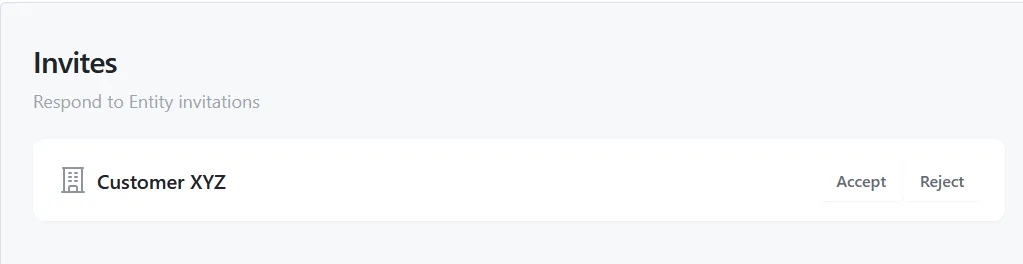
Accept or reject the invite.
Change the user permissions
Go to “Organization Settings” -> Members. On the right of the member entry, click “Edit Role”.
Select the Role and click “Update Access”.
Remove a user from an Organization
Go to “Organization Settings” -> Members.
On the right of the member entry, click “Remove Membership”. You will be required to confirm the removal.
Related Account Setup
For account creation, email verification, password changes, and profile settings, see Account Settings.