

Organization Management
This page explains how to manage organizations, sub-organizations, and sites in the EcoPhi Portal. You will learn how to create sites, set up sub-organizations, share sites with teams or customers, and understand how permissions and roles affect access.
The Main Organization is created automatically and linked to a billing account. It can create new Sites and always has access to all Sites created. Via Sub-Organizations, you can share one or multiple Sites with other users such as specific teams, partners, or customers.
For a general overview of the platform structure and navigation, see EcoPhi Portal Structure.
Sites
Create a new Site
Watch this video to see how you can create new Sites:
Go to the “Sites Overview” tab in the left navigation bar and click the “Add Site” button in the top right.
Enter the name and an optional description. You can add labels to better filter and search your Sites.
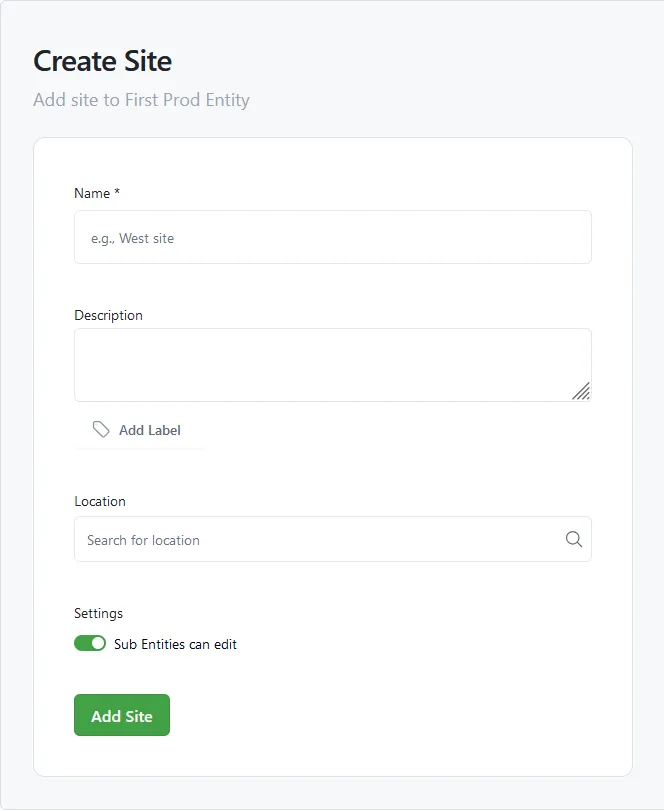
For the next setup steps after creating a Site, see Quick Guide: Connect a Device.
Edit an existing Site
Go to the “Site Overview” tab. Expand the Site by clicking the arrow on the left.
On the right side of the bottom navigation bar for the Site, click the “Edit” icon.
Change the Site information and click “Update Site”.
Delete an existing Site
Go to the “Site Overview” tab. Expand the Site by clicking the arrow on the left.
On the right side of the bottom navigation bar for the Site, click the “Delete this Site” icon.
You are required to confirm the deletion.
Sub-Organizations
Create a Sub-Organization
Watch this video to see how you can create Sub-Organizations:
Go to “Organization Settings” on the left navigation bar and open the Sub-Organizations section.
You will see a list of all Sub-Organizations. Click “Add Sub-Organization”.
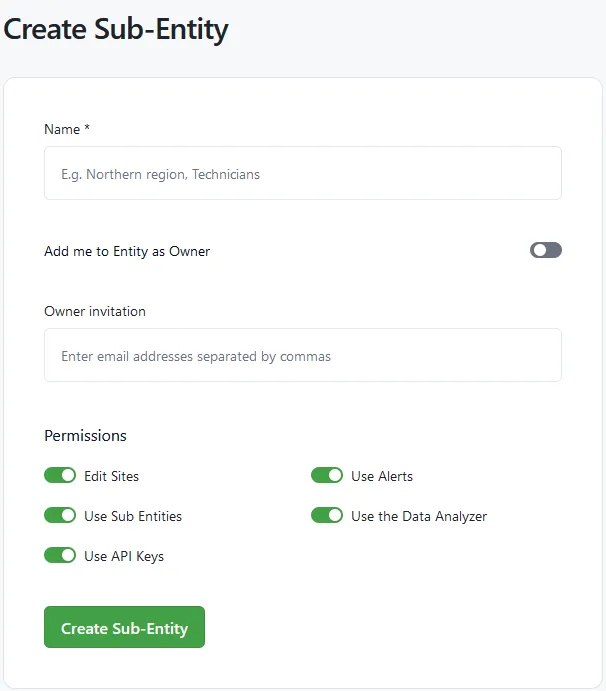
A name is required.
You can add yourself as an Owner if you want to manage the Sub-Organization. You can also invite other Owners by email.
Select the required permissions:
- Edit Sites: If enabled, Sub-Organizations can edit Sites, for example by changing the Site name and information or by adding Data Sources and Components. They still cannot create new Sites, because this can only be done by the Main Organization.
- Use Sub-Organizations: If enabled, Sub-Organizations can create their own Sub-Organizations and share Sites with them.
- Use API Keys: Defines whether API keys can be created at the Sub-Organization level.
Click “Create Sub-Organization”.
Invite Users to Sub-Organizations
Share Sites with a Sub-Organization
Watch this video to see how you can share Sites with Sub-Organizations:
Go to “Organization Settings” -> Sub-Organizations. Click the three dots next to the Sub-Organization with which you want to share the Site, then click “Add Sites”.
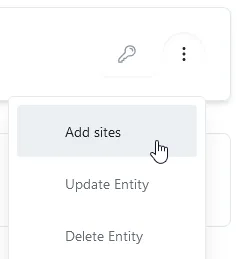
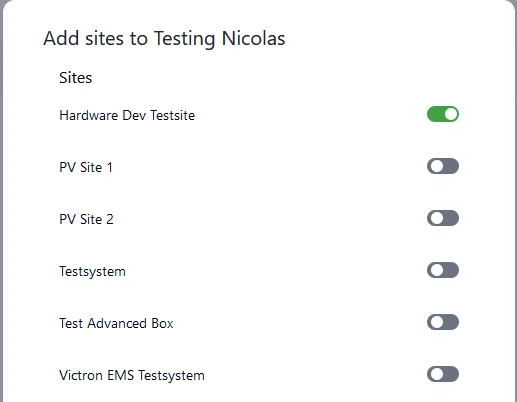
Select the Site(s) that you want to share and click “Add Sites”.
Roles, permissions and rules
Permissions are managed at both the Organization and user level.
Organization Permissions
The permission to create additional Sub-Organizations and edit Sites can be assigned at the Sub-Organization level. This means actions and settings can be enabled separately for each Sub-Organization.
User Roles and Permissions
For assigning and updating member roles in practice, see User Management.
-
Owner: Owns the Organization with all permissions. The Owner automatically has access and can manage all Sub-Organizations. Each (Sub-)Organization must have at least one Owner. Permissions:
- “permissions/sites.edit”,
- “permissions/sites.create_delete”,
- “permissions/sub_entities.manage”,
- “permissions/users.manage”,
- “permissions/entity.edit”,
- “permissions/entity.critical”,
- “permissions/data_sources.view”,
- “permissions/data_analyzer.view”,
- “permissions/api_keys.manage”,
- “permissions/alerts.manage”,
- “permissions/logbook.manage”,
- “permissions/logbook.read”,
- “permissions/file_store.view”,
- “permissions/file_store.manage”
-
Manager: Has editing permissions for the (Sub-)Organizations of which they are a member. Can create and edit Sites and manage members. Permissions:
- “permissions/sites.edit”,
- “permissions/sites.create_delete”,
- “permissions/sub_entities.manage”,
- “permissions/users.manage”,
- “permissions/entity.edit”,
- “permissions/data_sources.view”,
- “permissions/data_analyzer.view”,
- “permissions/alerts.manage”,
- “permissions/logbook.read”,
- “permissions/file_store.view”,
- “permissions/file_store.manage”,
- “permissions/file_store.view”
-
Viewer: Has view-only permissions and cannot edit. Permissions:
- “permissions/data_sources.view”,
- “permissions/data_analyzer.view”
-
Member: Has limited viewing permissions and can only see the Site Overview. Permissions:
- no additional permissions