

Ticket System
1. Submit a Support Request
Use https://ecophi.io/support-request/ to submit a request to our support team.
After submitting the form, you will receive a confirmation email from the support team containing a ticket number.
You can send more information and communicate with the Support team by answering directly on that mail. Make sure you don’t change the email subject when answering.
To access the ticket system, register at https://ecophi.zammad.com/#signup.
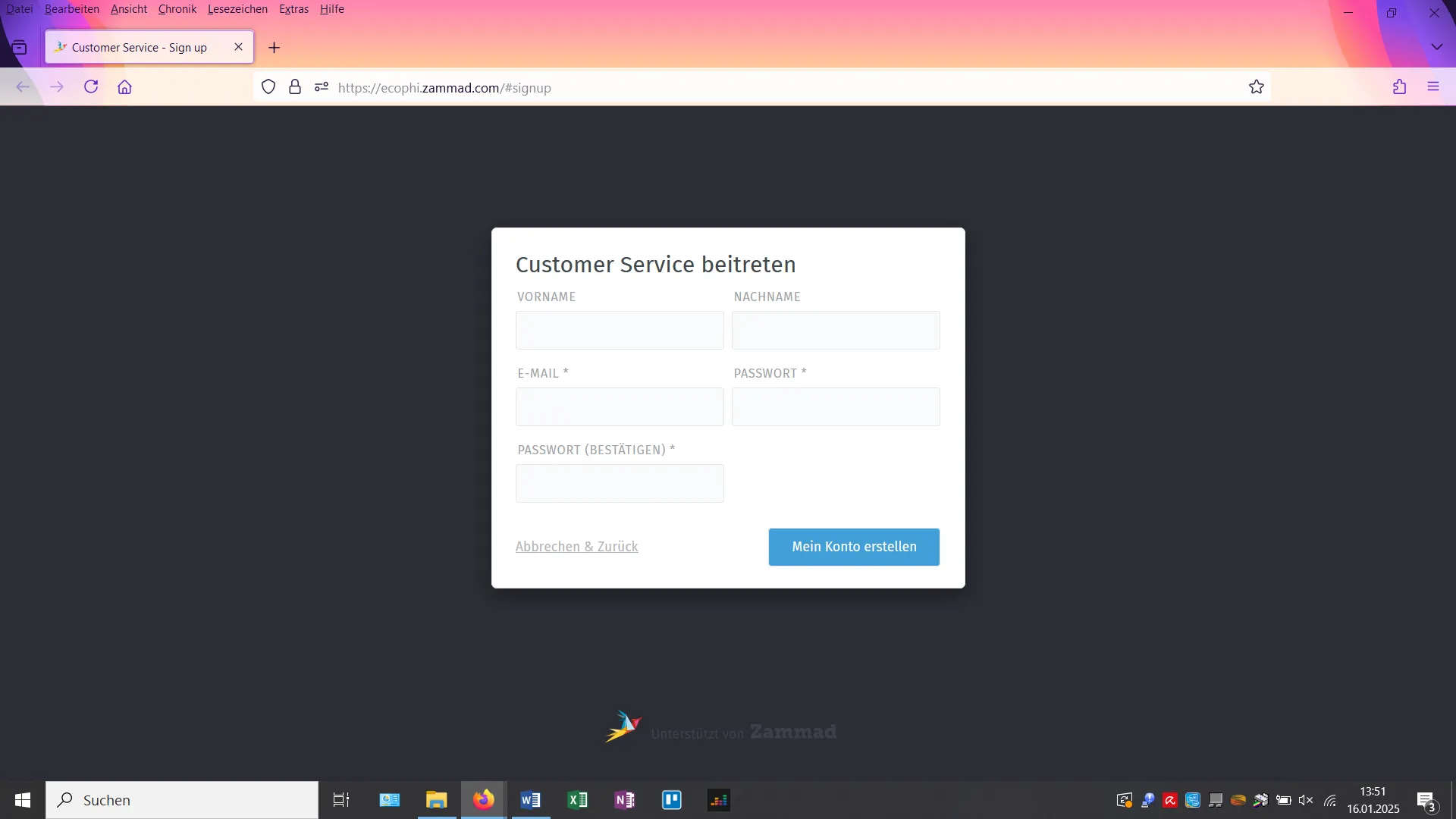
After registering, you will receive an email to reset your password.
Click the link in that email. After setting your password, you will be taken to the overview page of your open and closed support tickets.
There you will find the ticket with the assigned number from the confirmation email together with all relevant information.
2. Communicating with Support
Click the ticket in the list to open the support chat containing your request and the replies from our support team.
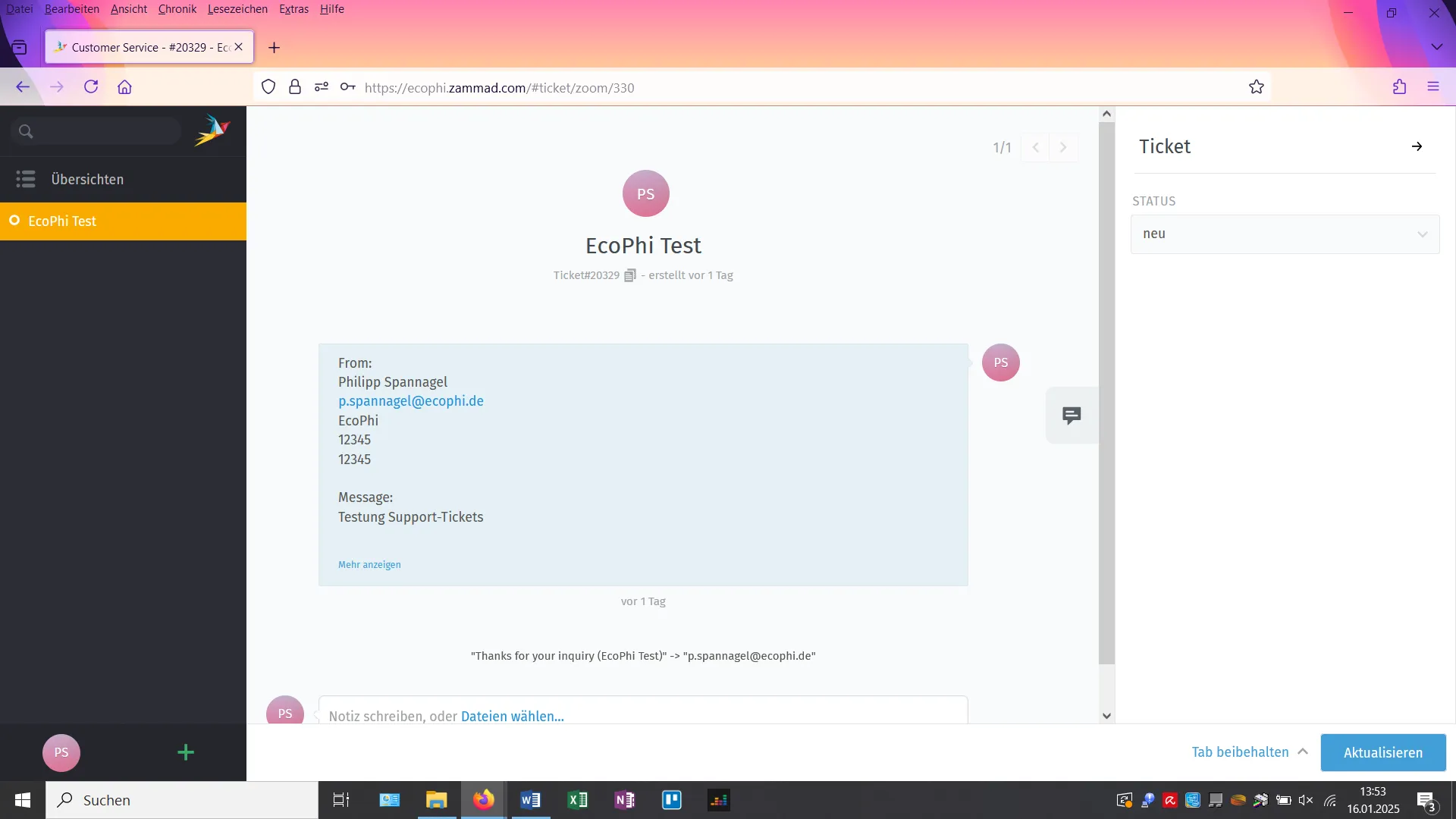
Here you can send additional messages to us or upload files.
Whenever the support team replies, you will also receive an email. You can reply directly to those emails as well. Your email reply will appear in the helpdesk chat, and all email messages will be shown there. This means you can communicate with the support team either through the helpdesk chat or by email.
Clicking individual messages shows the message details. Clicking them again hides those details.
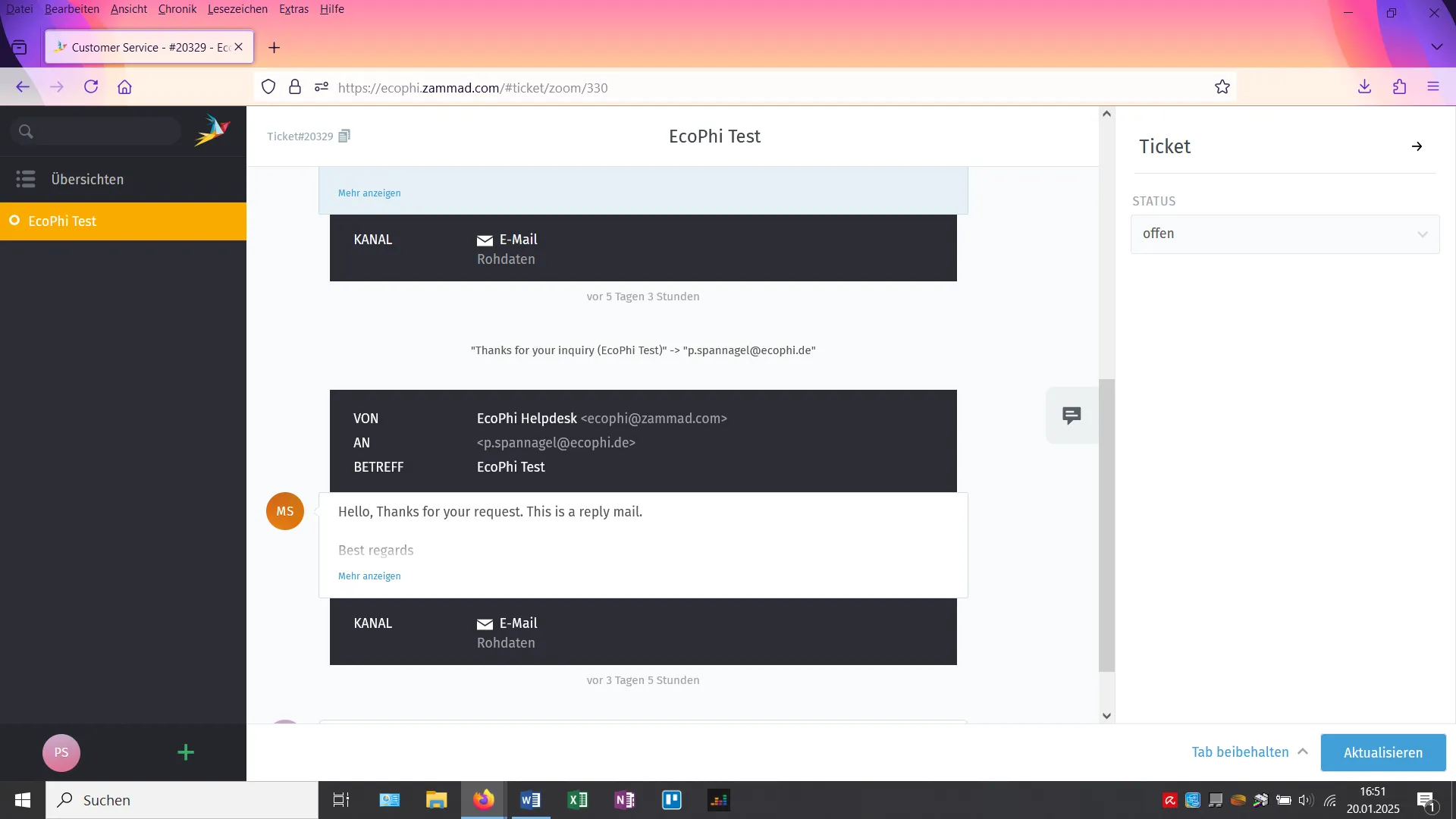
On the right side of the chat, the sidebar shows the status of your ticket. To close this sidebar, click either the arrow in the top right next to “Ticket” or the message icon on the left edge of the sidebar. To open it again, click the message icon once more.
If you want to return to the ticket overview, you can:
- click “Overviews” in the left sidebar,
- click the “x” for the corresponding ticket under “Overviews” when it appears on hover, or
- click “Close tab” and then “Refresh”.
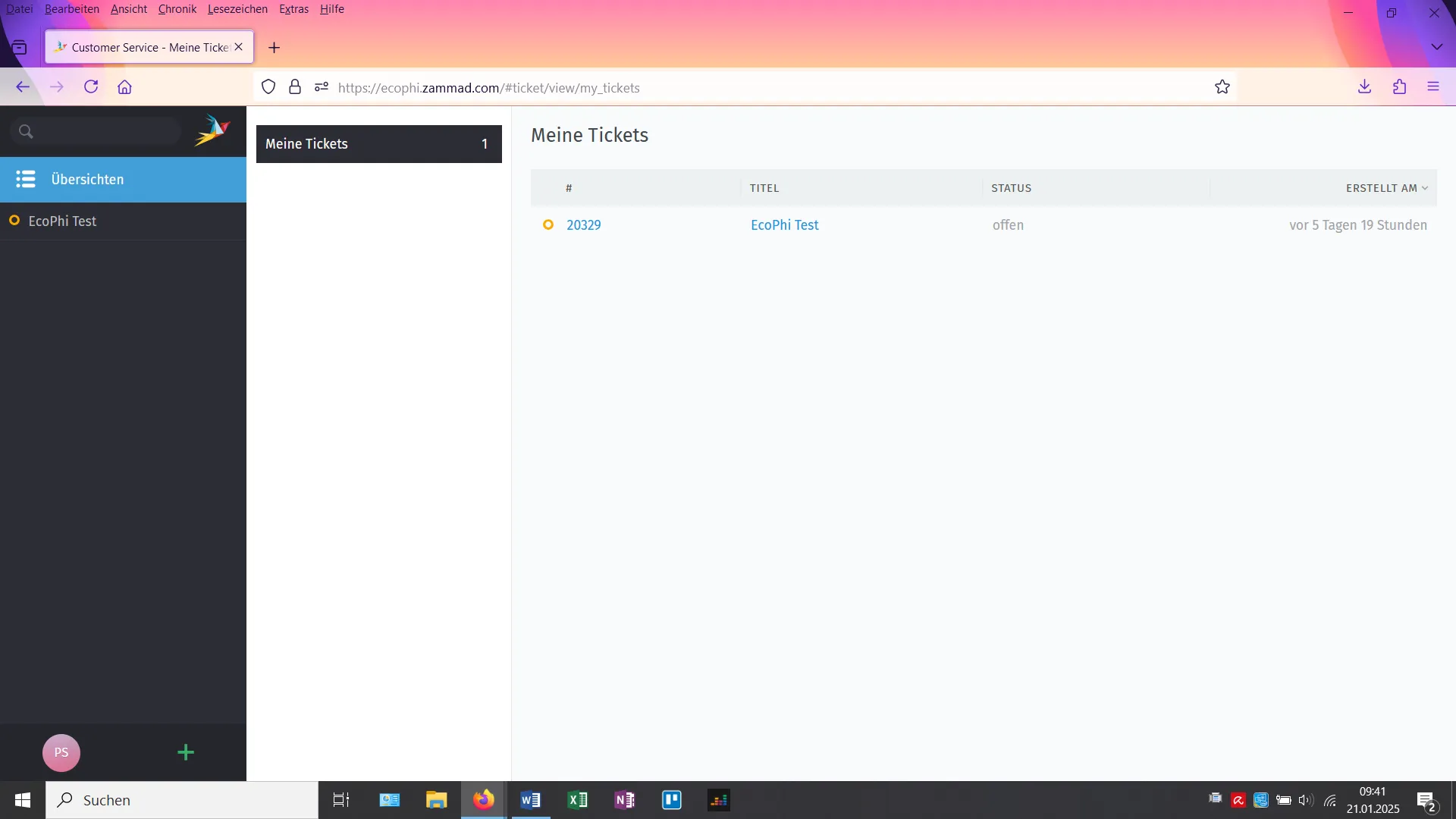
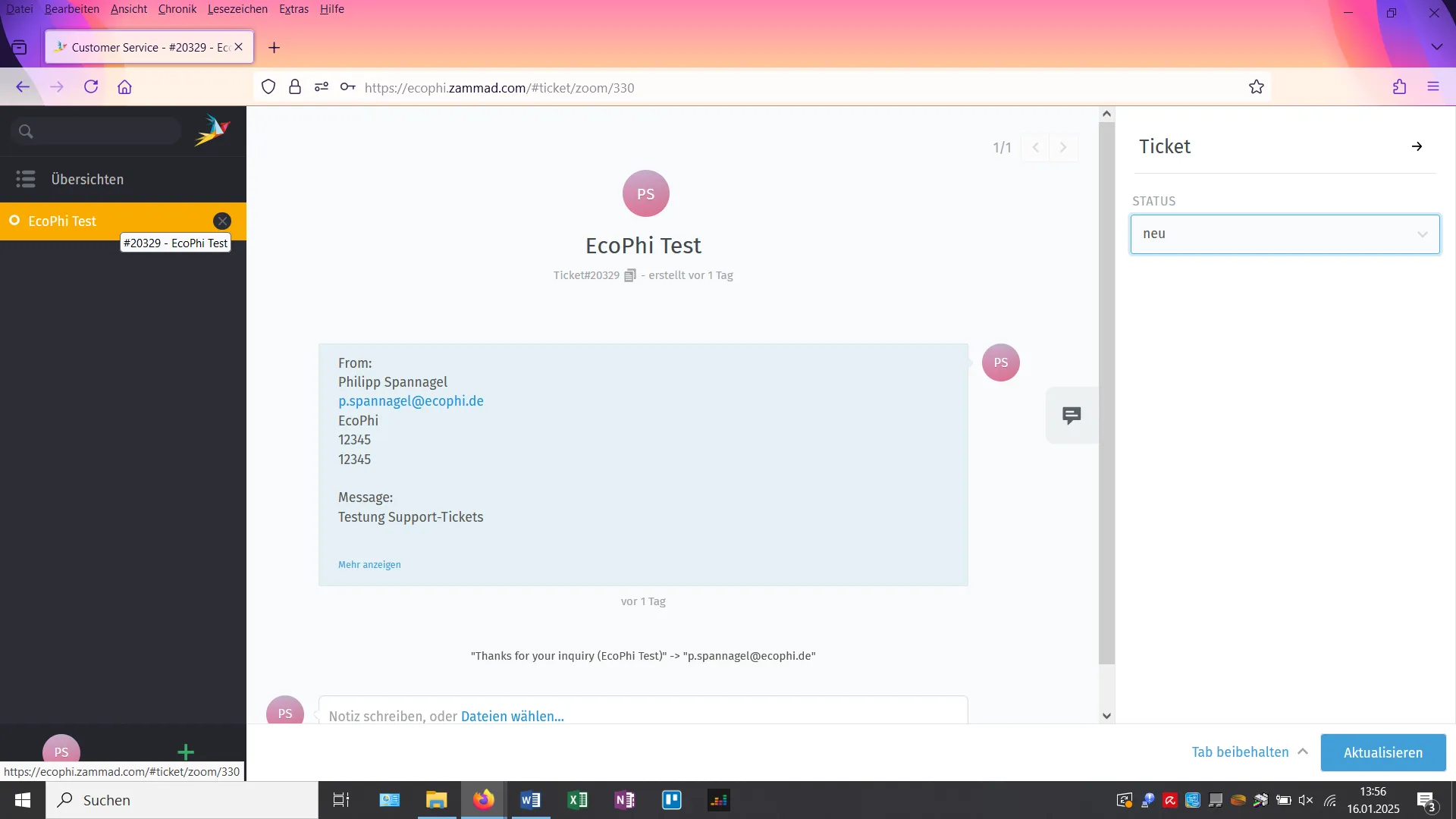
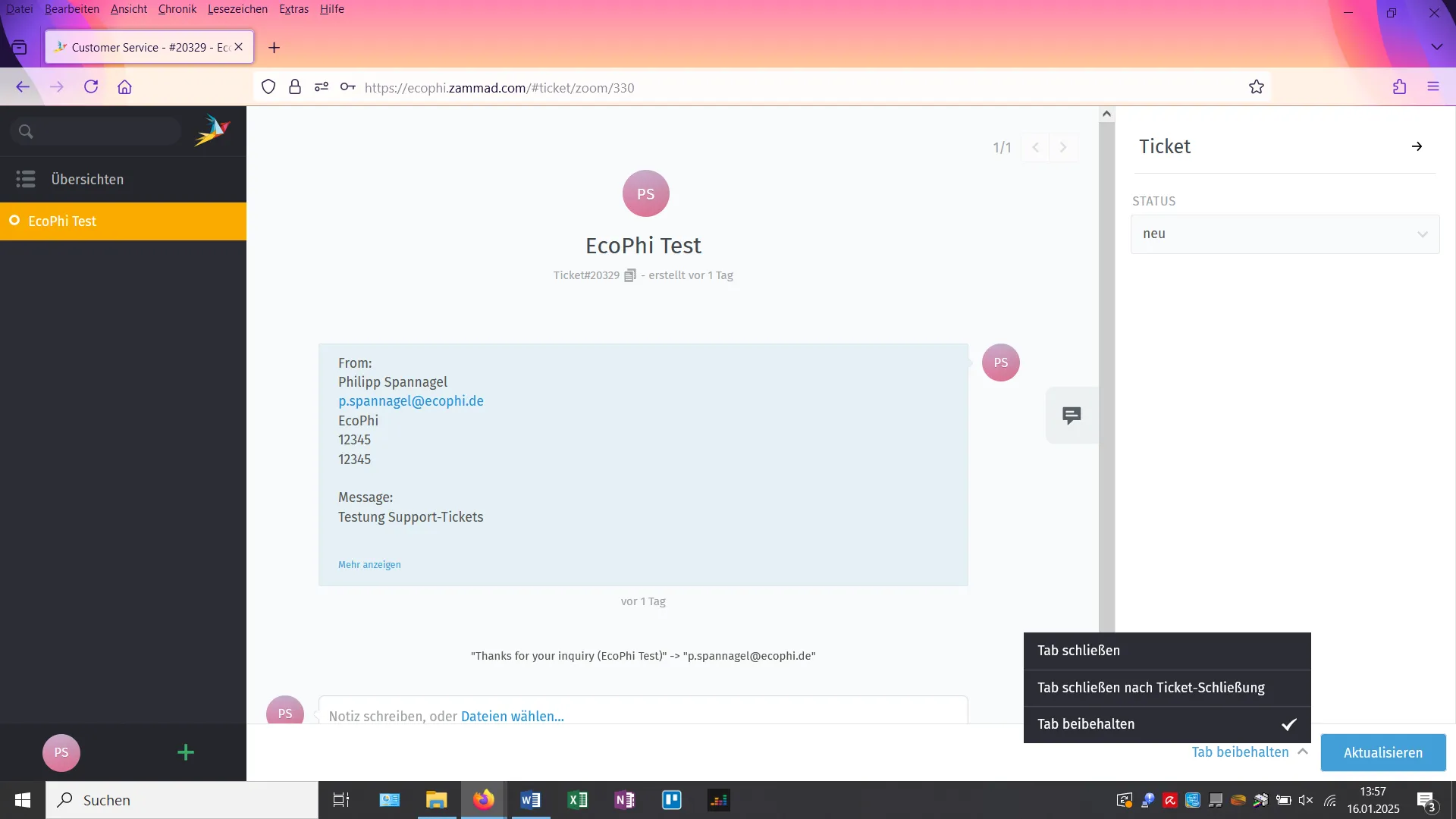
You can also choose to leave the chat automatically once the ticket is closed. To do this, select “Close tab after ticket closure” and click “Refresh”. If you choose “Keep tab”, the chat remains open.
3. Create a New Ticket
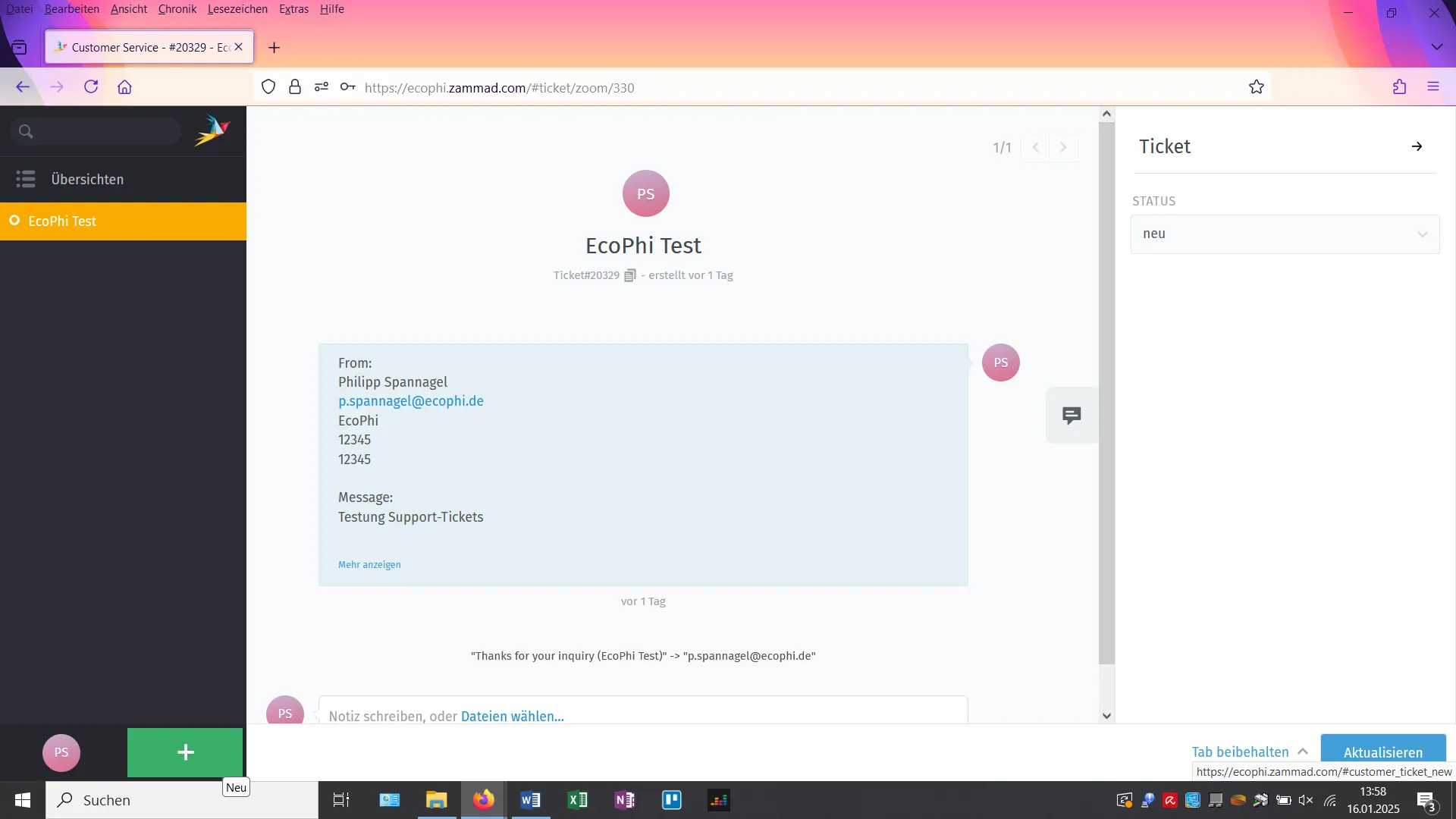
If you want to create another ticket, click the ”+” at the bottom of the left sidebar next to the avatar icon for your user account.
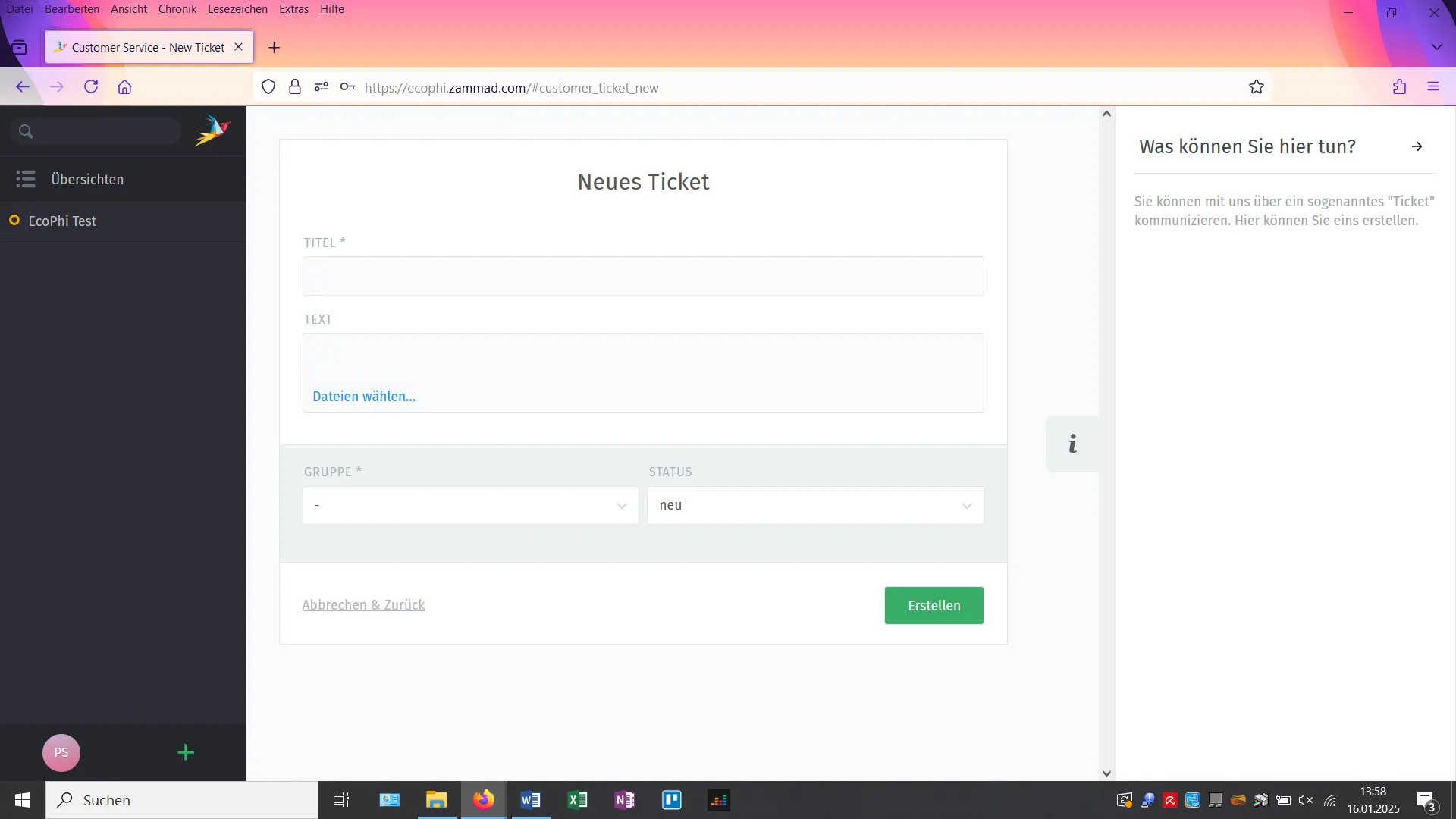
Enter the required information and click “Create”. Clicking the “i” provides additional information.
After creation, the new ticket appears in the overview and you will be taken directly to the support chat for that ticket.
As described above, you can also create a new ticket through https://ecophi.io/support-request/.
Please note that you must use the same email address if you want to see the new ticket in the helpdesk alongside your existing tickets.
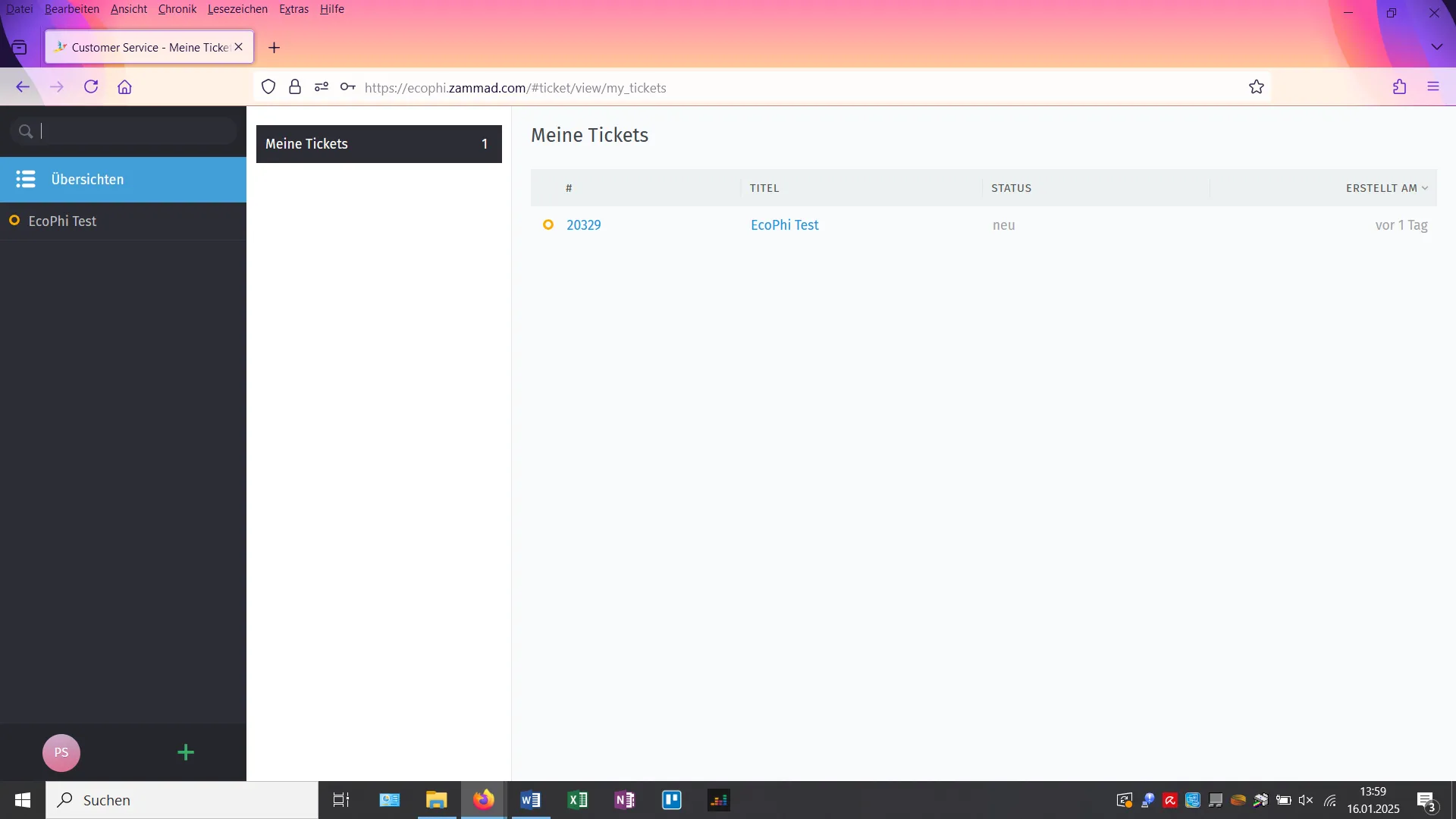
4. Search and Notifications
At the top of the left sidebar, you will also find a search bar.
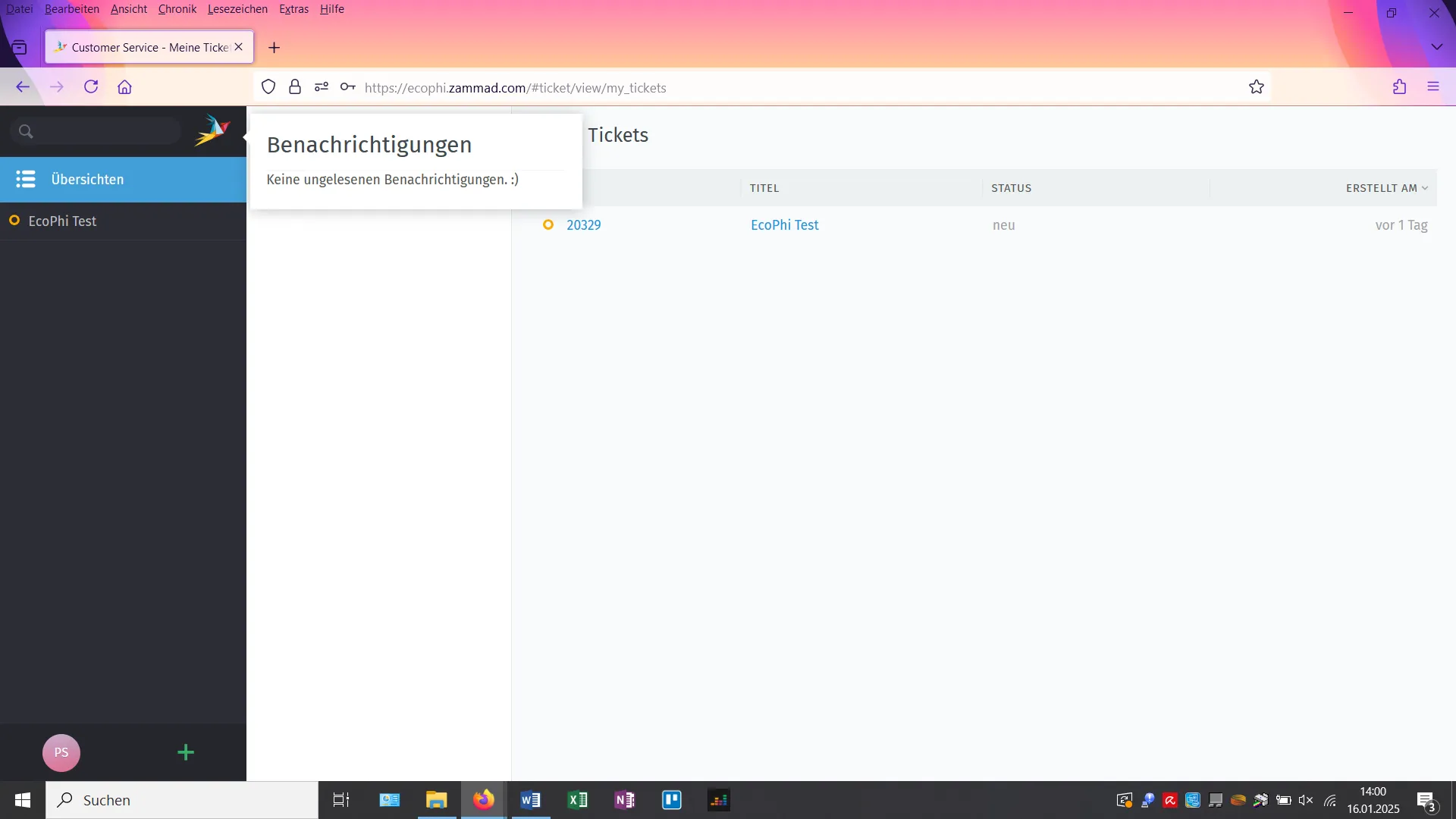
You can use it to search for previous tickets.
Click the “Zammad” logo to the right of the search bar to view all notifications from the support team.
5. Change Account Settings and Log Out
To change your account settings, click the avatar icon at the bottom of the left sidebar next to the ”+”.
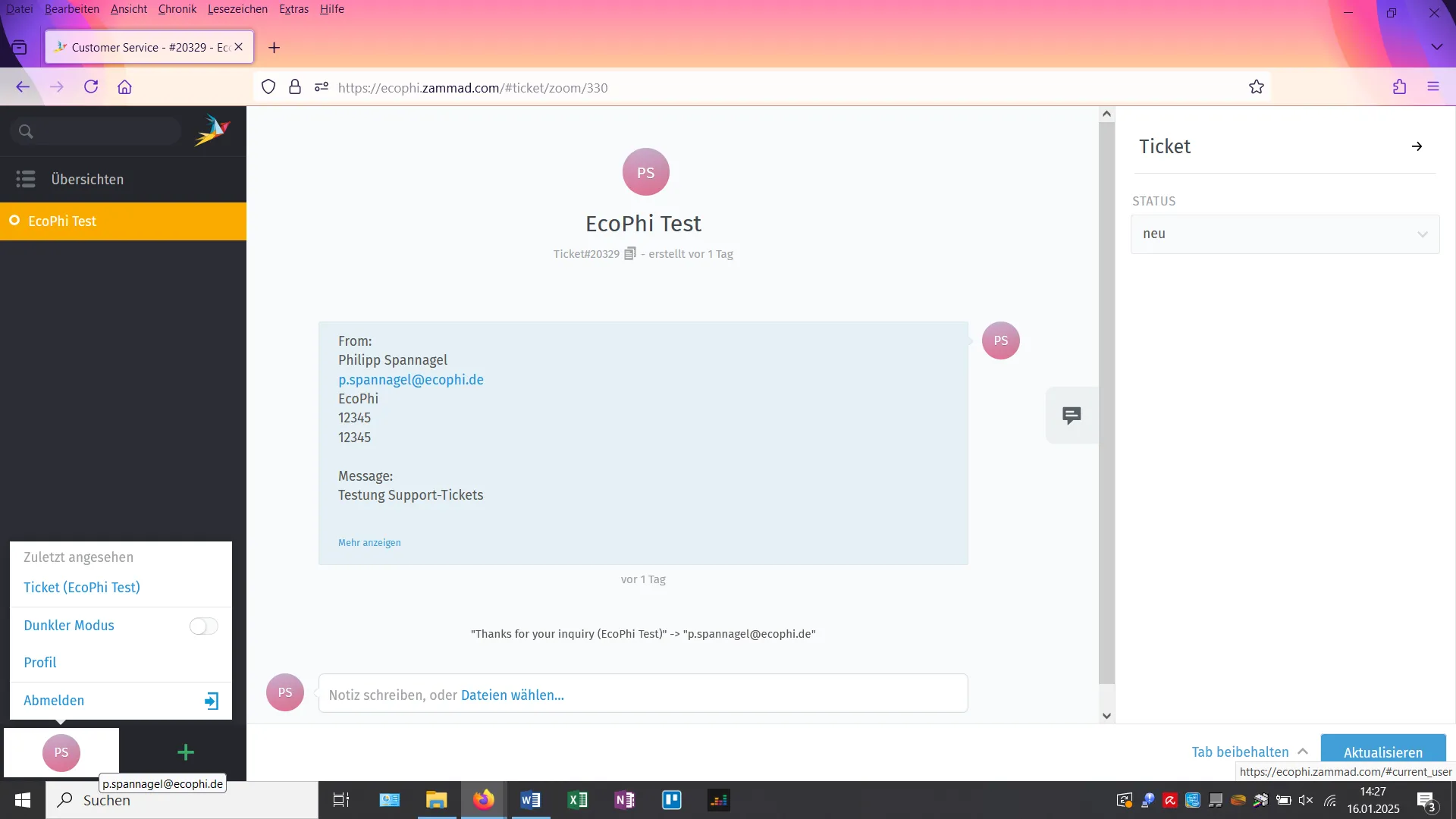
Clicking the avatar icon also lets you access your most recently created tickets or log out of the helpdesk.